

Chat with Swan on WhatsApp and Telegram
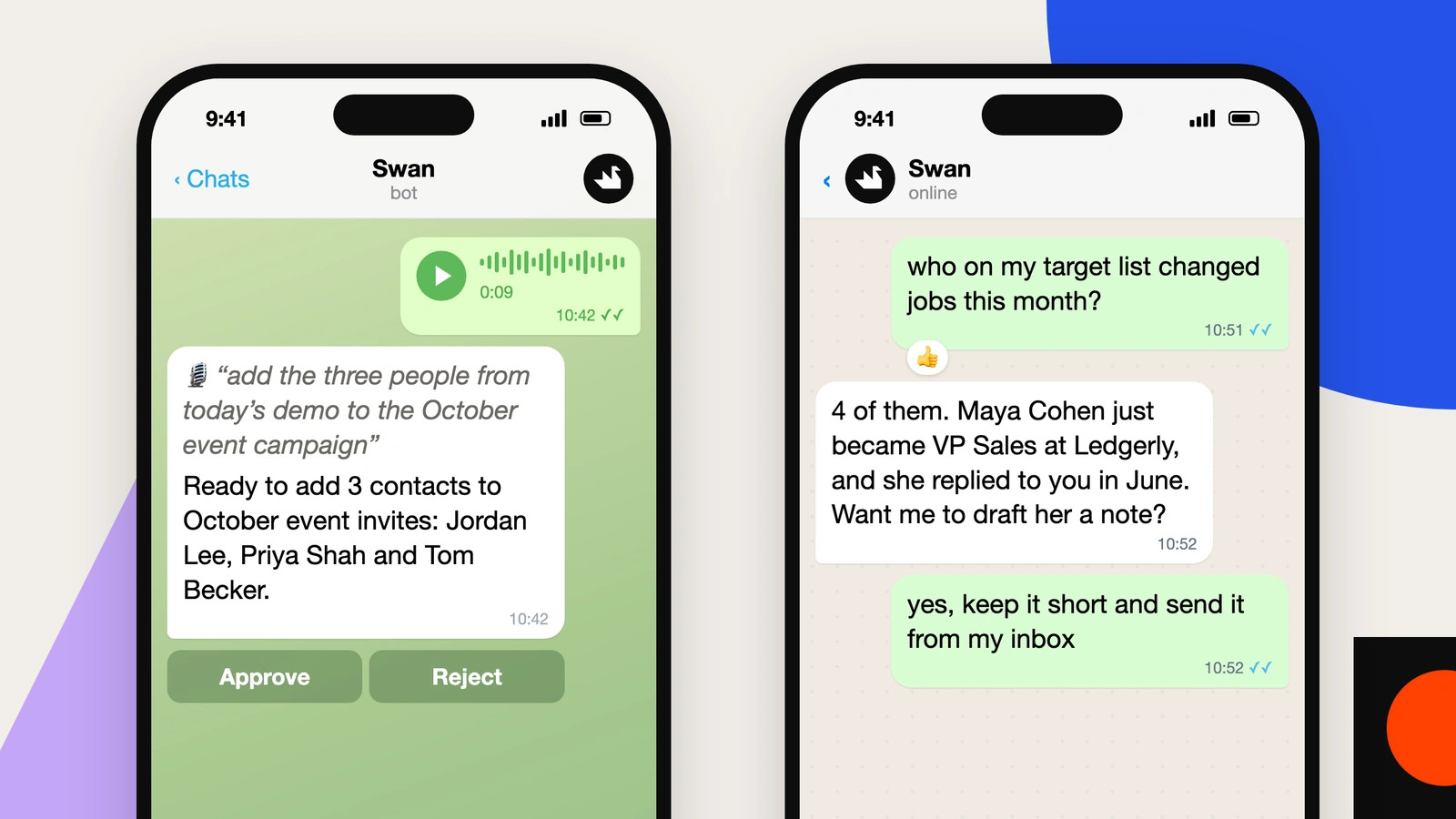
You can now talk to Swan from your phone, the same way you do in the app. Send text, voice notes, photos and files. When Swan needs your approval, tap Approve or Reject in the chat.
Each person connects their own account:
- Go to Settings → Messaging.
- Click Connect on WhatsApp, Telegram, or both.
- For Telegram, open the Swan AI bot and tap Start. For WhatsApp, send the message on the screen from your phone.
Important: When you ask for an email in WhatsApp or Telegram, Swan sends the email immediately. These chats cannot show a draft, so tell Swan exactly what to send. In the app and in Slack, Swan still shows a draft first.
Connect WhatsApp or Telegram →
Hundreds of vetted GTM skills, inside Swan
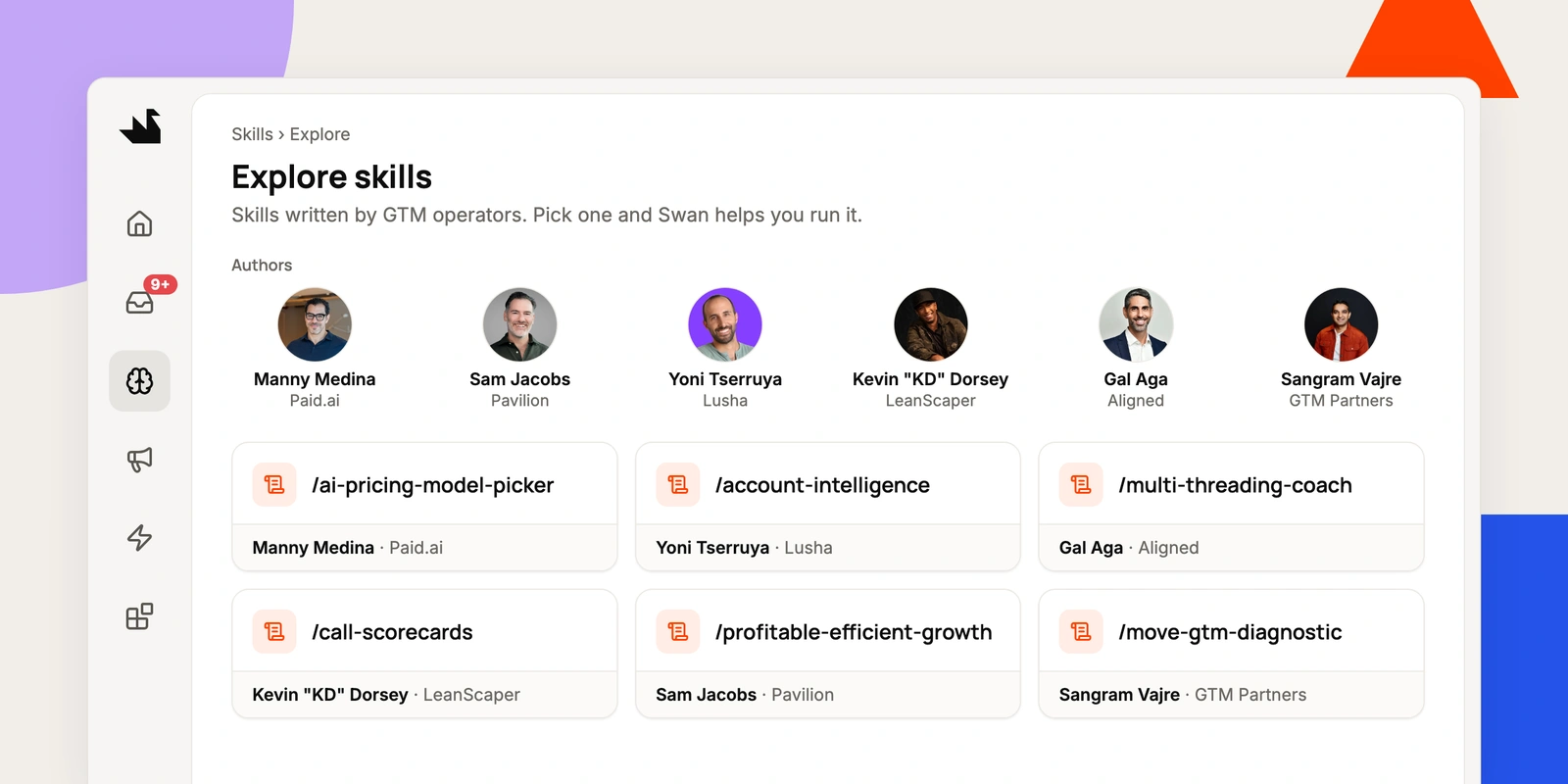
gtmskills.com is a library of hundreds of vetted GTM skills from dozens of leading operators, including Manny Medina of Paid.ai, Sam Jacobs of Pavilion, Yoni Tserruya of Lusha, Gal Aga of Aligned, and Kevin “KD” Dorsey of LeanScaper. You can now explore it in Swan:
- Go to Skills → Explore.
- Search by skill, author, or company, or filter by tag or author.
- Open a skill to read it, or click Use with Swan.
Swan opens a chat, explains what the skill does and what it needs, helps you run it, and offers to add it to your skills.
Swan also uses the library on its own. When your workspace has no skill for what you ask, Swan searches the library for one that fits.
Swan learns from your edits
Every edit you make to a draft now teaches Swan. Each morning, Swan looks at the edits your team made. When the same change shows up in 2 or more edits, Swan adds it to the writing instructions of that inbox. For example: a shorter first line, or a sentence you always add back. The more you edit, the less you will need to.
Swan learns your style, not one-off changes like a fixed fact or a line for one campaign. Your own instructions stay exactly as you wrote them. To see the instructions, go to Tools → Email or LinkedIn → Configuration → the inbox → Instructions.
Improvements
Swan does more in HubSpot — Swan can now do these tasks in HubSpot. You do not have to connect HubSpot again.
- Meetings and calls: log meetings with their times and result, and log calls with their direction, result, and length.
- Owners: show the owners, and set the owner of contacts, companies, deals, notes, and tasks.
- Deals: create a deal with its company and contacts in the pipeline and stage that you select, and show the pipelines and stages.
- Lists: create static lists, and remove records from lists.
- Associations: add and remove association labels, for example “Decision maker”, and link parent and child companies.
- Workflows: show and read workflows, and turn them on or off. Swan always asks for your approval first.
- Leads: search and read leads with their stage, status, type, owner, contact, and company. Swan cannot change leads. Leads are available on Sales Hub Professional and Enterprise. Swan sees them only if you gave lead access when you connected HubSpot.
When you connect HubSpot, the permission to read email is now optional.
Outreach logged on the company in HubSpot — Every email and LinkedIn message that Swan sends now shows on the company in HubSpot, not only on the contact. Contacts and companies that Swan creates belong to the rep who sent the outreach. Swan finds existing contacts by their LinkedIn link and by name at the same company domain, so it creates fewer duplicates. Swan also links to existing contacts when you set contact creation to never.
Better email finding — Swan now checks six email providers in order: Dropcontact, EmailAddress.ai, Findymail, Hunter, LeadMagic and Wiza. Each result has a confidence score. When a result is weak, for example a role address, an address that may not deliver, or a person whose employment is not verified, Swan keeps it only as a fallback and tries the next provider. Swan never returns an address that it knows is invalid.
Granola — Granola is a new connection in Tools. Connect Granola, and Swan can search and read your meeting notes and transcripts.
Fast start in Slack — Swan adds 👀 to your message when it gets the message. For a simple answer, Swan no longer shows “Planning…” first.
Two Swans in one Slack channel — In a Slack Connect channel where both companies use Swan, the Swan that you tag, or the Swan that wrote the message you reply under, now answers people in its own workspace. Before, tagging the other company’s Swan often got no reaction and no reply. If someone outside that workspace tags it, Swan asks them to contact an admin. If they reply without a tag, Swan stays quiet.
Zips and other archives in chat — Attach .zip, .tar, .tgz, .gz, .bz2, .xz, .7z or .rar files in chat. Swan opens them with code and works with the files inside.
Low-credit alerts — Each admin gets an email when your organization uses 80% of its credits, and again at 95%. The email shows the credits that remain and has an Add credits button. Admins who connected Slack also get a Slack message. When you buy more credits or your plan renews, the alerts start again.
Export sequences to CSV — Go to Outreach → Sequences or to a campaign page. Open the Enrolled tab and click the download icon. The CSV file has one row for each sequence that matches your filters, with the details of the contact and each column of the table.
Old drafts expire — A draft that waits 10 days for approval now expires. Nothing goes out, and the contact is free for your next sequence.
Personal automations for members — Members can create personal automations. An automation for the full organization still needs an admin. The toolkit list on an automation shows only the toolkits that the automation can use.
A clearer work log in chat — Each step in chat has a plain label, for example “Read skill” or “Checked help docs”. The summary counts steps. Swan does not show the steps that it skipped and tried again. When Swan asks you a question, the field for your own answer is larger.
Fixes
Replies from a different address — Fixed an issue where a sequence kept going after the prospect replied from a different address, such as an alias, a second domain, an assistant or a colleague. Swan now counts the reply, links it to the contact in that email thread, and stops the sequence.
Hebrew and Arabic emails — Fixed an issue where Hebrew and Arabic emails went out left-to-right. They now go out right-to-left, with the signature on the right.
Follow-ups without a first email — Fixed an issue where, if the first email of a sequence did not go out, Swan sometimes sent the follow-up as a cold email with no subject.
LinkedIn links from prospecting — Fixed an issue where prospecting sometimes saved LinkedIn’s internal ID link (linkedin.com/in/ACoAA…), which does not open. Swan now saves the person’s public profile link when one exists, and keeps the internal ID only to match the person to earlier records.
Long conversations — Fixed an issue where long, complex conversations would sometimes crash.
Archive in Gmail — Fixed an issue where archiving emails in Gmail would sometimes fail without a message. Swan now tells you when to connect the account again.
One contact for each LinkedIn person — Fixed an issue where a person who commented on a post and then reacted to it sometimes showed up as two contacts.
Employees at a company — Fixed an issue where asking for employees at a company, with no title or department, sometimes returned nobody.
Automations follow your instructions — Fixed an issue where automations that start from a webhook or an integration event sometimes followed the event instead of your instructions.
Inbox handover — Fixed an issue where a teammate who connected an inbox again, after its owner’s connection stopped, saw a success message but the connection was not kept. The teammate now gets the inbox with its history and sequences.
IMAP inboxes — Fixed an issue where some IMAP inboxes did not record sent emails or find replies.
Forwarded messages in Slack — Fixed an issue where Swan saw only your own words when you forwarded a message or pasted a table in Slack.
Slack task cards — Fixed an issue where Slack task messages sometimes listed outreach that was already approved or sent.
Account details — Fixed an issue where “No owner” and “No stage” did not save on an account page.
Editors — Fixed an issue where the skill, automation and memory editors sometimes asked “Leave site?” with no changes, lost the cursor after ⌘S, or cleared the text on undo. Code blocks are also easier to read in light mode.
Chat history — Fixed an issue where a chat that you started in the side panel did not show in chat history until you reloaded the page.